


Overview
The Bulk Upload Tool is designed to simplify importing data from Excel/CSV files into SharePoint. It removes the need for manual list creation (with the required columns that match the data in the columns), copy-pasting rows, or uploading attachments one by one.
With this tool, users can:
- Create new SharePoint lists (along with the list columns) directly from Excel files.
- Upload data into existing lists.
- Upload attachments linked to each row.
- View progress, errors, and history via a dashboard.
Solution Installation and Deployment
Upload Solution to the App Catalog
- Navigate to your SharePoint Admin Center.
- Go to Apps > App Catalog.
- Upload the “corporate directory. sppkg” package file to the Apps for App Catalog.
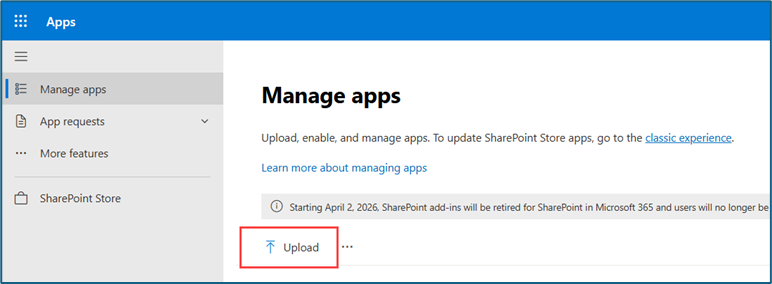
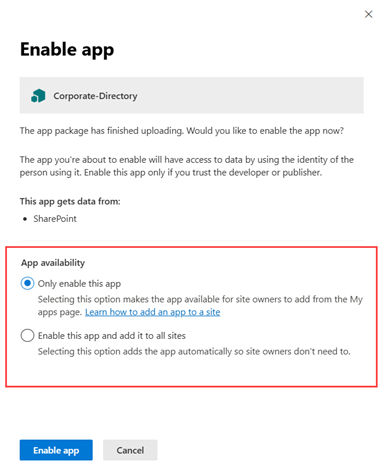
- Then upload the. sppkg file to the App Catalog, choose whether to deploy the app to a single site or all SharePoint sites, and then click the ‘Enable App’ button.
Adding the Web Part to a SharePoint Site
Add the App to the Site
- Navigate to the SharePoint site where you want to use the web part.
- Go to Site Contents > Click + New button > App.
- Select the Corporate Directory web part from the My apps and add it to your site.
Edit the Page and Add the Web Part
- Open the SharePoint page where you want to display the Corporate Directory web part.
- Click Edit Page.
- In the web part toolbox, search for Corporate Directory and add it to the page.
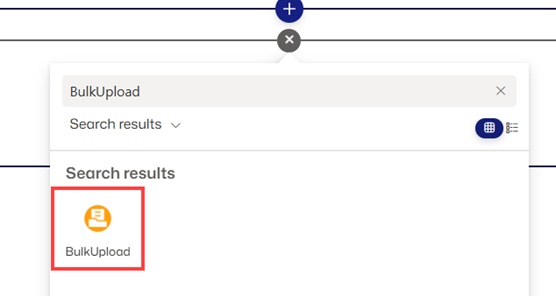
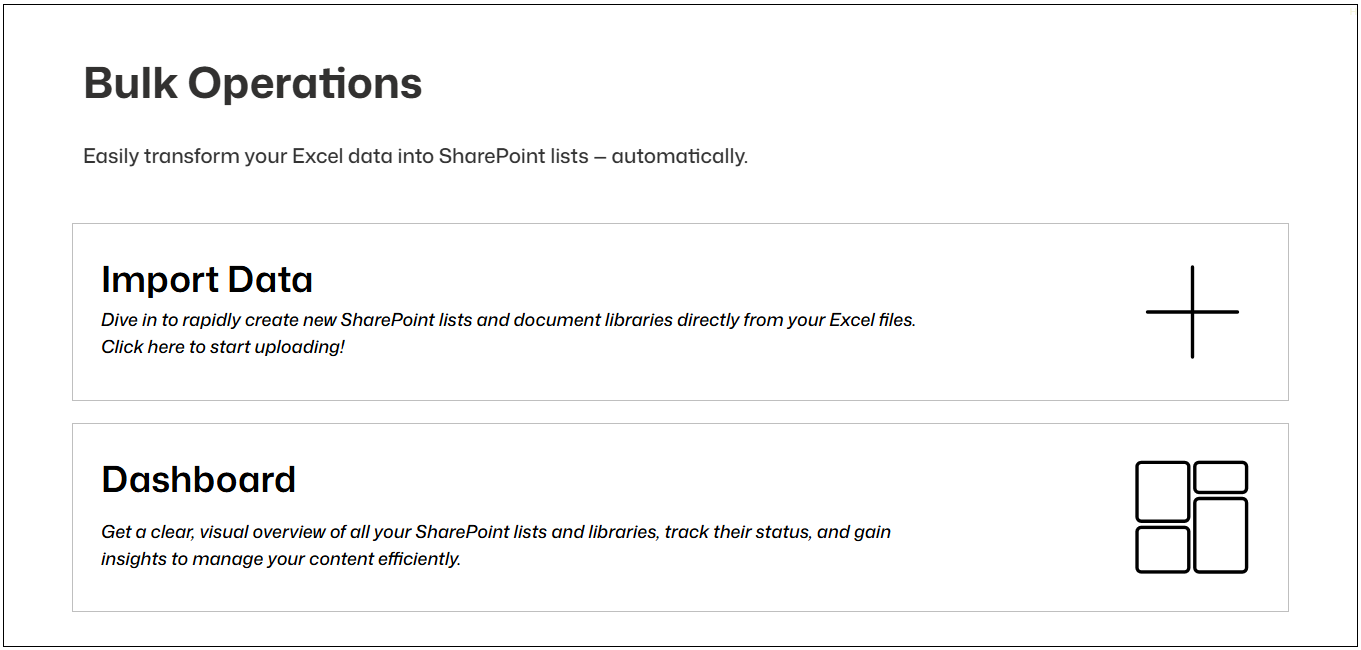
- When the web part is added to the SharePoint page, the Bulk Upload home page is displayed.
Webpart Configuration
- When you show the home page of the webpart you can see the two option “Import Data” and “Dashboard”.
Import Data Page
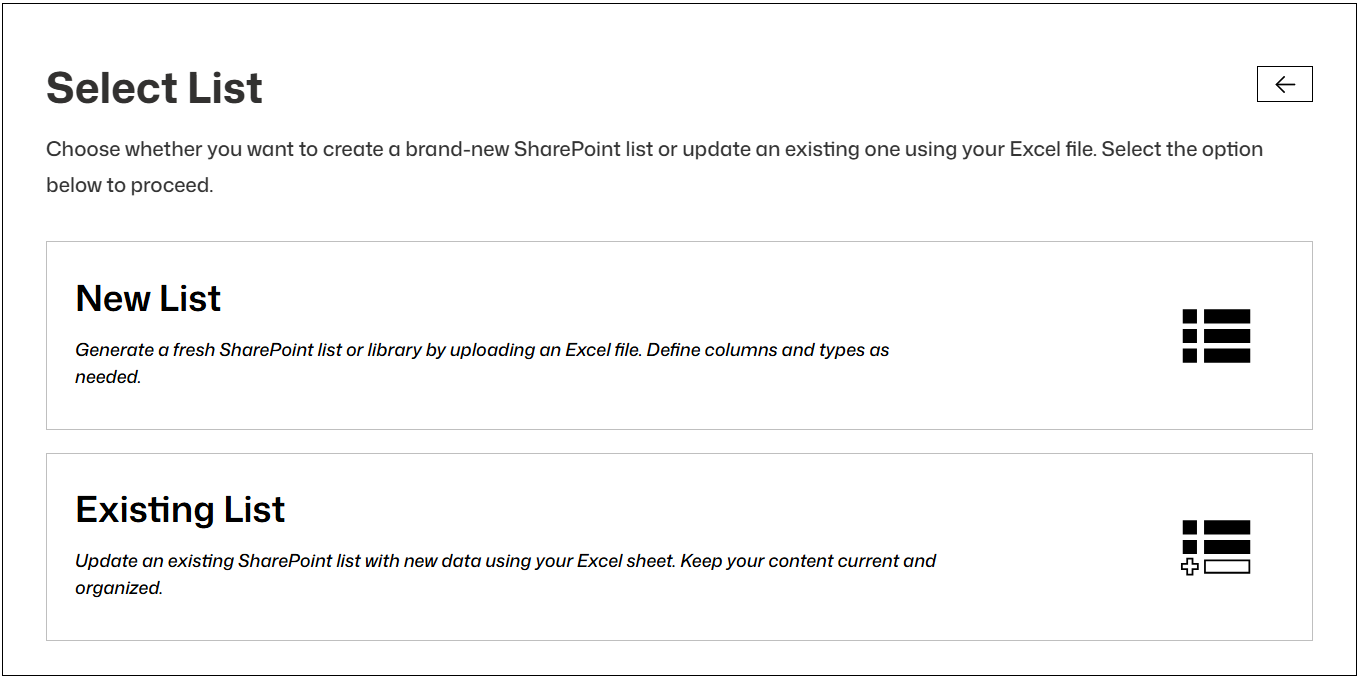
- On the Import Data page, two options are displayed: ‘New List’ and ‘Existing List’.
New List Page
- Generate a fresh SharePoint list or library by uploading an Excel file. Define columns and types as needed.
- When uploading a file, hover over the ‘i’ (information) button to view additional details.

- A file is uploaded; the system automatically detects and displays the column names along with their data types. A sample data column is also shown for verification. If needed, you can manually change the column type.
- The user must select one column from all available columns to serve as the unique ID column.
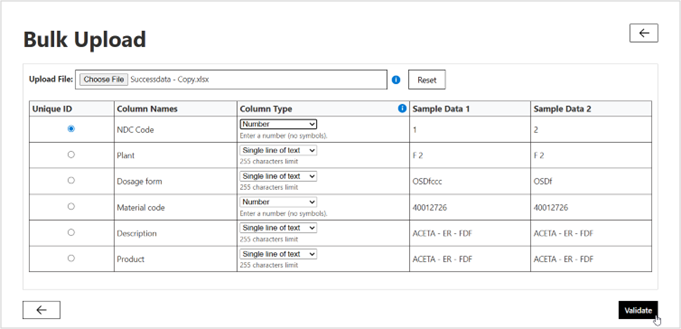
- Next, validate all the data. If the data is correct, the next page will be displayed. If any data is invalid, an error popup will appear.
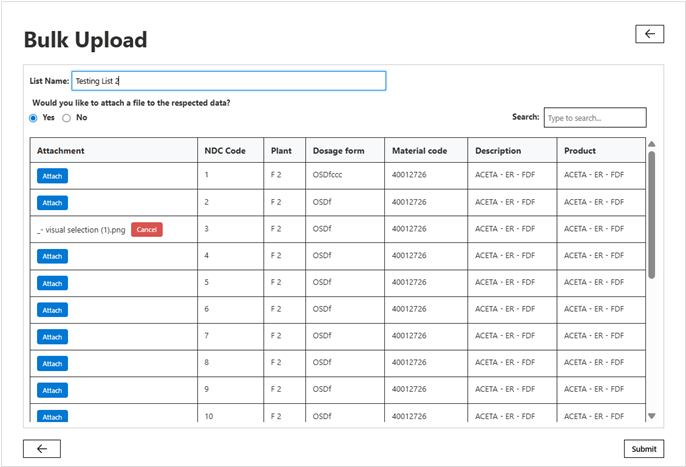
- Enter the list name. If the user wants to attach any attachments to the records, select the ‘Yes’ radio button; otherwise, select ‘No’.
- If ‘Yes’ is selected, attachments will be stored in the Document Library and records will be stored in the List. If ‘No’ is selected, only the records will be stored in the List.
Existing List Page
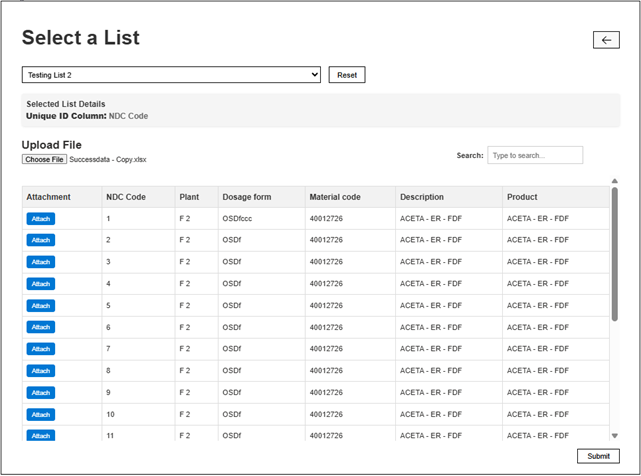
- If a user wants to update or add new records to an already created list using this solution, they can select this page.
- uploaded file must have the same column names as those in the list; otherwise, an error message will be displayed.
Dashboard Page
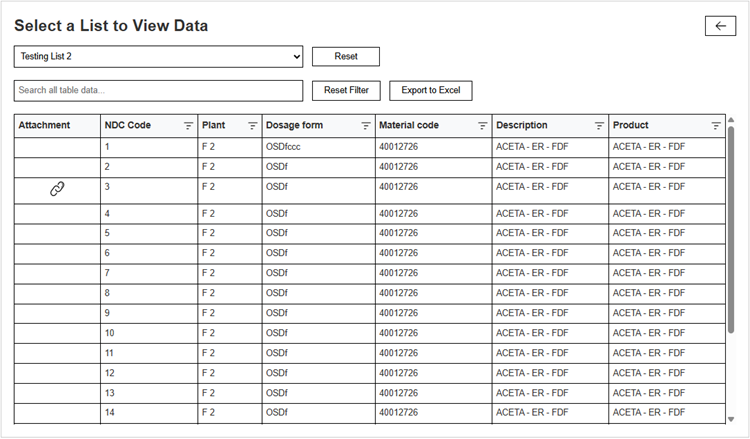
- If the user wants to view all data, it can be accessed on the Dashboard page. From here, the user can select any list to view its data. If a record has attachments, a Document Set link for those attachments will also be displayed.
- Users can export the data from the Dashboard to Excel.
- Users can also filter the data by individual columns or by date.
Troubleshooting Tips
- Error: “Invalid Column Name”
Ensure that the uploaded file has the same column names as the SharePoint list. Rename headers in your Excel/CSV file to match exactly. - Error Popup on Validation
Double-check the data types of each column. Update mismatched data types before retrying the upload. - Data Not Appearing in Dashboard
Refresh the page or clear the browser cache. Make sure the correct list is selected in the Dashboard dropdown. - App Not Visible in Site Contents
Verify that the. sppkg solution was deployed to the App Catalog and that you have permissions to add apps to the site.
Key Notes
- The unique ID column is mandatory for preventing duplicate or conflicting records.
- Attachments are stored separately in the Document Library, while list records remain in the SharePoint List.
- Uploaded Excel/CSV files must follow consistent formatting (headers in the first row, clean data without merged cells).
- Exported Excel files from the Dashboard maintain applied filters for easier offline analysis.